Alight Motion XML Presets: Everything You Need to Know
Introduction to XML Presets
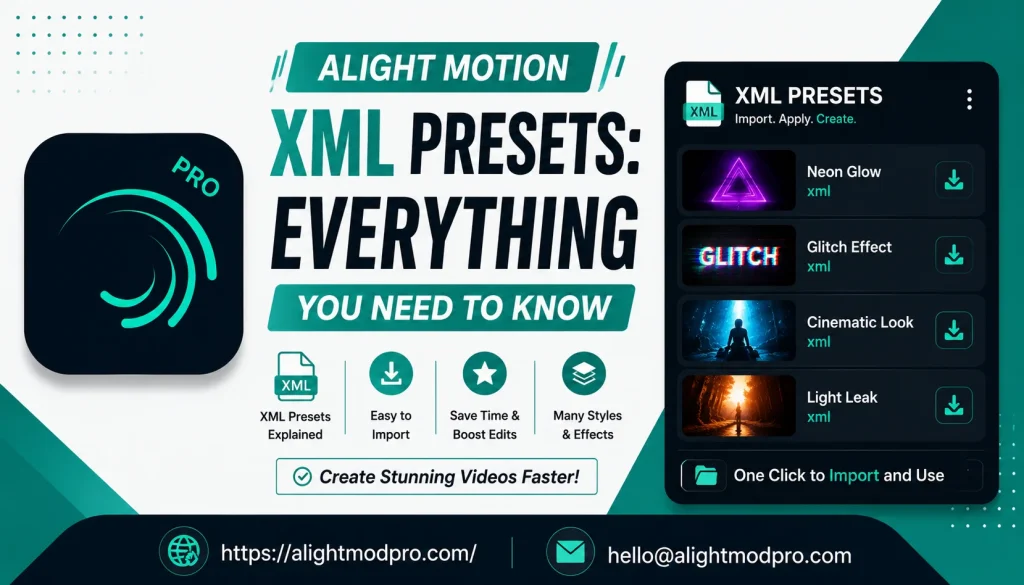
XML presets are pre-configured setting files that transform your Alight Motion editing experience. These files contain ready-made effects, animations, transitions, and color grading adjustments. Instead of manually creating complex effects from scratch, you can apply professional-quality presets with just a few taps. XML presets save hours of editing time while delivering consistent, polished results. They are especially popular among mobile video editors creating content for TikTok, Instagram Reels, and YouTube Shorts. Understanding how to use XML presets unlocks a world of creative possibilities in Alight Motion.
What Are Alight Motion Presets?
Alight Motion presets are pre-designed templates that contain various effect settings and animations. Think of them as powerful filters that go beyond simple color adjustments. Presets can adjust motion graphics, visual effects, color grading, text animations, transitions, and more. Experienced video editors and motion graphic designers create these presets by fine-tuning multiple parameters within Alight Motion. These parameters include color adjustments like brightness and contrast, visual effects such as blur and glow, motion properties like position and scale, and animation settings including keyframes and easing.
When you apply a preset, you copy all these settings onto your own project instantly. This allows you to replicate complex effects and styles with ease, ensuring professional-looking results even as a beginner. Presets democratize high-quality video editing, making advanced effects accessible to everyone regardless of experience level. You can find presets for almost any style imaginable—cinematic looks, glitch effects, transitions, text animations, and much more.
Types of Presets Available
Different preset types serve various creative purposes in Alight Motion. Color presets apply specific color grading looks to your footage, from cinematic teal-and-orange to vintage film aesthetics. Text presets contain pre-animated text styles with custom fonts, sizes, and motion effects. Transition presets include smooth cuts, zooms, wipes, and other scene-change effects. Video effect presets combine multiple effects like glow, blur, shake, and distortion for dramatic visual transformations. Some presets are designed for specific content types like gaming highlights or lyrical status videos. Many creators share preset packs containing dozens of effects for different editing needs.
Finding and Downloading Presets
Where to Find Presets
Video sharing platforms are excellent sources for finding Alight Motion presets, with many creators offering free presets in their video descriptions. Social media platforms are also popular where editors share preset links and demonstrate their effects. Social media communities and messaging groups often host preset collections specifically for Alight Motion users. Websites dedicated to Alight Motion resources offer both free and premium preset collections. Dedicated preset applications available on app stores provide hundreds of presets with daily updates. Many online forums and tutorial channels provide preset suggestions with download information. Premium presets often come with more advanced effects and customizations, but plenty of fantastic free options exist for beginners.
Understanding XML Files
XML stands for Extensible Markup Language, and these files contain all the configuration data for your preset. When you download a preset, it typically comes as an XML file or an Alight Motion project file. The XML file stores information about every effect, animation keyframe, color adjustment, and transition setting. This file format allows presets to be easily shared, downloaded, and imported across different devices. Some creators also share presets via QR codes that link directly to XML files. The XML format makes it simple to back up your favorite presets and transfer them between devices. Always verify that the preset is compatible with your Alight Motion version to avoid import errors.
How to Import Presets into Alight Motion
Method 1: Using File Manager
First, open your device’s File Manager application. Locate the XML preset file you downloaded to your device. Tap the share button on the XML file and select Alight Motion from the sharing options. The app will open automatically and begin the import process. Create a new project or open an existing one where you want to use the preset. Wait for the import process to complete before starting your editing. This method works seamlessly on most Android devices.
Method 2: Direct Import from Preset Links
Find and click the preset link shared by a creator on social media or video platforms. The link will redirect you to Alight Motion automatically. Tap the Import button that appears in the app. Wait while the preset files load and install into your project. After importing, you can start editing by adding music, photos, or videos. Adjust the preset settings to match your specific content and creative vision. Save your project when you are satisfied with the results.
Method 3: Import XML Option
Open Alight Motion and create a new project or open an existing one. Tap the three dots in the top right corner of the screen. Select Import XML from the dropdown menu. Browse your device to locate the downloaded XML file. Tap the file to import it into your current project. The preset effects will appear as layers in your project timeline. You can then copy these effects onto your video clips.
Method 4: Project File Import
If you downloaded an Alight Motion project file, simply open the file directly. The project will automatically open in Alight Motion. You will see all layers and effects already applied. Copy the layers containing the effects and paste them onto your video layer. Adjust the position, scale, and other properties to fit your video. Save the customized project for future use.
Applying and Customizing Presets
Applying Presets to Videos
Open your project in Alight Motion and select the video clip you want to enhance. If you imported an XML file, copy the effects from the preset layer and paste them onto your video layer. If you imported an Alight Motion project file, copy the entire layer group containing the effects. Adjust the settings to fit your video, changing colors and intensity as needed. You can also adjust the timing of animations to match your content. Always preview the preset on your video before finalizing to ensure it looks correct.
Customization Tips
Customizing presets allows you to create unique effects that match your personal style. Examine each effect within the preset and understand how it contributes to the overall look. Adjust the parameters of each effect to fine-tune intensity, color, and timing. If the preset includes a glow effect, you can modify the radius and color. For color grading presets, experiment with color wheels and curves to create a unique palette. Add additional effects to enhance the preset, such as film grain or lens flares. Save your customized presets so you can use them again in future projects.
Common Adjustments
Not all presets will look perfect on every video due to differences in lighting and colors. Start by adjusting basic parameters like brightness, contrast, and saturation. These settings have a significant impact on the overall appearance. If the preset includes color grading, adjust highlights, shadows, and midtones for balance. For presets with motion graphics, adjust timing and position to sync with your video. Customize text elements to fit your brand or style. Remember that subtle adjustments often look more professional than heavy effects.
Frequently Asked Questions
Conclusion
XML presets have transformed the way creators edit videos in Alight Motion. They provide instant access to professional-quality effects that would take hours to create manually. Finding presets is easy through video platforms, social media, and dedicated applications. Importing presets is straightforward with multiple methods available. Customizing presets allows you to develop your unique editing style. With practice, you can even create and share your own presets with the community. Whether you are a beginner or experienced editor, XML presets will significantly enhance your Alight Motion workflow. Start exploring the world of presets today and transform your video projects. Happy editing with Alight Motion XML presets.