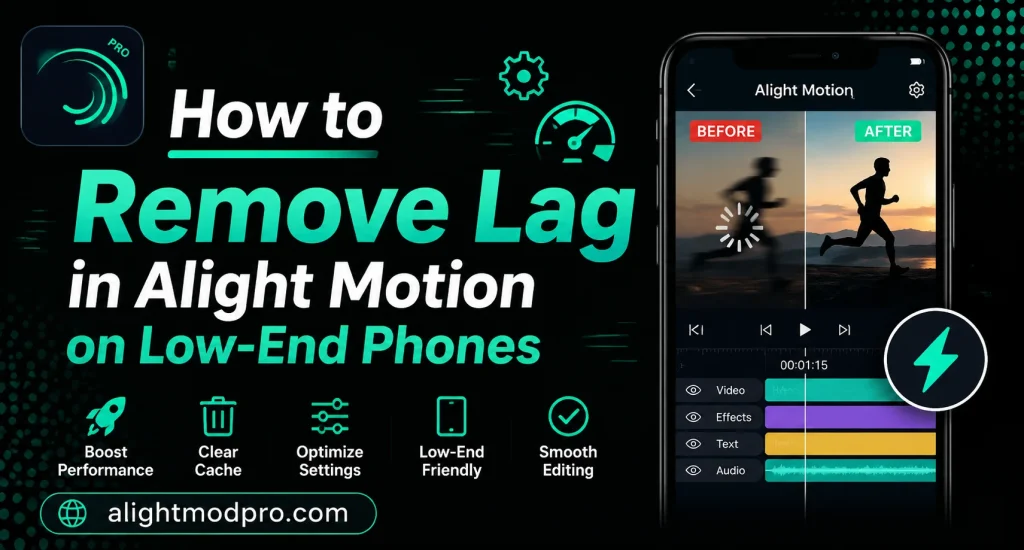
How to Remove Lag in Alight Motion on Low-End Phones
Alight Motion is a powerful motion design app that can be demanding on mobile hardware. Low-end phones often struggle with lag, stuttering, and slow performance when running complex projects. This comprehensive guide will help you optimize Alight Motion for smooth performance on budget devices.
Lag can ruin your creative workflow and make editing frustrating. Fortunately, there are many techniques to reduce or eliminate lag on low-end phones. Let’s explore every method to keep Alight Motion running smoothly on your device.
Understanding Why Lag Happens
Lag occurs when your phone’s processor cannot keep up with the demands of your project. Complex effects, high-resolution media, and multiple layers all require significant processing power. Low-end phones have limited RAM and slower processors that struggle with these demands.
Understanding the causes of lag helps you address them effectively. Effects like glow, shadow, and blur are particularly resource-intensive. Video files with high resolution also consume more processing power during editing.
Check Your Device Specifications
Before optimizing, understand what your phone can handle. Check your device’s RAM, processor, and available storage space. Low-end phones typically have 2-4GB of RAM and entry-level processors.
Know your device limitations to set realistic expectations. Projects that work smoothly on flagship phones may not perform well on budget devices. Adjust your workflow based on your phone’s capabilities.
Close Background Applications
Background apps consume valuable RAM and processing power. Close all unnecessary apps before opening Alight Motion. This frees up resources for smoother editing performance.
Use your phone’s task manager to close running applications. Restart your phone before important editing sessions. A clean system runs Alight Motion more efficiently.
Clear Device Storage
Low storage space can significantly impact app performance. Ensure you have at least 2-3GB of free storage on your device. Clear cache files and delete unused media to free up space.
Storage that is nearly full slows down system operations. Regular storage maintenance keeps your phone running smoothly. Consider using cloud storage for project backups.
Use Lower Resolution Projects
Project resolution directly affects performance on low-end phones. Start with 720p (1280×720) instead of 1080p or 4K. Lower resolution projects require significantly less processing power.
You can always export in higher quality for final delivery. Edit in low resolution and switch to higher resolution only for export. This technique dramatically improves editing performance.
Enable Low-Quality Preview
Alight Motion includes a low-quality preview mode for better performance. Enable this option in the settings menu before starting your project. The preview will appear less sharp but will run much smoother.
This feature is specifically designed for low-end devices. Use low-quality preview during editing and switch to full quality for final checks. This balances performance with the ability to review your work.
Reduce Layer Count
Every layer adds to the processing load on your device. Minimize the number of layers in your project where possible. Combine simple layers or use pre-compositions to reduce complexity.
Pre-compose related layers into single nested compositions. This reduces the number of layers the system needs to process. A simpler layer structure significantly improves performance.
Turn Off Unused Effects
Each effect applied to a layer requires additional processing power. Disable effects that are not essential to your current workflow. Turn effects back on only when you need to see their impact.
Effects like glow, shadow, and blur are particularly heavy on performance. Use these effects sparingly on low-end devices. Consider adding heavy effects only during final rendering.
Adjust Effect Quality Settings
Many effects in Alight Motion have quality adjustment options. Reduce the quality settings for heavy effects during editing. Lower quality effects still show the general look while using less processing power.
Increase effect quality only before final export. This technique saves significant processing resources. Most effects have slider controls for quality adjustment.
Use Lower Resolution Media
High-resolution videos and images consume more processing power. Downscale your media files before importing into Alight Motion. Use 720p resolution for media when possible.
Resize images to match your project resolution. Large files slow down timeline scrubbing and playback. Optimize all media for your project’s needs.
Optimize Timeline Navigation
Scrolling through a complex timeline can cause lag on low-end phones. Zoom in to view fewer frames at once for smoother navigation. Use the playhead to jump to specific positions rather than dragging.
Bookmark important points to jump directly to them. Avoid dragging the playhead through heavy effect sections. Efficient timeline navigation reduces unnecessary processing.
Use Smaller Canvas Size
The canvas size in Alight Motion affects performance significantly. Reduce your canvas size for complex projects on low-end devices. A smaller canvas means less data to process per frame.
Set canvas size to 720p or lower during editing. Increase canvas size only for final export. This simple change can dramatically improve performance.
Disable Auto-Play
Auto-play previews can cause lag when opening complex projects. Disable auto-play in the settings menu. This prevents the project from rendering automatically on load.
Manually preview your animation when you are ready to review. This gives you control over when processing happens. Auto-play consumes resources that could affect editing performance.
Reduce Frame Rate
Editing at 60fps is more demanding than 30fps. Set your project frame rate to 30fps during editing. Switch to 60fps only if your final output requires it.
Lower frame rates require less processing power per second. This is especially helpful for longer projects. Export at higher frame rates for final delivery.
Use Proxies for Video Files
Proxy files are lower-resolution versions of your video clips. Create proxy files for all video clips in your project. Edit with proxy files and switch to originals only for export.
This professional technique is essential for low-end devices. Proxies significantly reduce the processing load during editing. Switch back to originals before final export.
Update Alight Motion
Newer versions often include performance improvements and bug fixes. Always use the latest version of Alight Motion available. Updates may include optimizations for low-end devices.
Check the app store regularly for new updates. Performance improvements are frequently included in updates. Outdated versions can have unnecessary performance issues.
Clear App Cache
Over time, Alight Motion accumulates cache files that can affect performance. Clear the app cache from your device settings menu. This removes temporary files that take up storage and may slow things down.
Regular cache clearing maintains optimal performance. Access cache clearing through your phone’s app settings. Consider clearing cache before starting a new project.
Restart Your Device
Restarting your phone clears temporary system files and processes. This can refresh system resources for better app performance. Restart before important editing sessions for the best results.
A fresh system state allows Alight Motion to access maximum resources. System processes that slow down your phone are cleared on restart. Regular restarts maintain long-term device performance.
Use Simple Backgrounds
Complex backgrounds with gradients and effects require more processing. Use simple solid color backgrounds during editing. Add complex backgrounds only when necessary for final output.
Animated backgrounds are particularly heavy on performance. Design with simplicity in mind for smooth editing. Background complexity should match your device capabilities.
Limit Keyframe Usage
Too many keyframes can slow down timeline performance. Use keyframes efficiently and remove unnecessary ones. Simplify your animation where possible for better performance.
Complex animations with many keyframes require more processing. Consider using fewer keyframes with better easing. Quality over quantity applies to keyframe animation.
Use Shape Layers Instead of Images
Shape layers are rendered more efficiently than imported images. Use Alight Motion’s built-in shape tools when possible. This reduces the need to process large image files.
Vector shapes are also scalable without quality loss. Create graphics directly within Alight Motion for better performance. This approach is both efficient and professional.
Export at Lower Settings
When rendering final exports, consider lower settings for faster processing. Render at 720p instead of 1080p if quality allows. Lower bitrate exports also process faster on low-end phones.
Exporting is resource-intensive, so reduce settings when possible. Choose higher quality only when necessary. Faster exports mean less strain on your device.
Use External Storage
If your phone has limited internal storage, use external storage options. Move media files to an SD card to free up internal space. More free internal storage improves overall system performance.
App performance improves when internal storage has adequate space. Consider external storage for project files and media. Internal storage should be reserved for app operations.
Consider Hardware Alternatives
If lag persists, consider alternative workflows. Use a tablet with better specifications for complex projects. Cloud-based editing solutions can also reduce device strain.
Desktop computers offer the best performance for heavy projects. Mobile editing has limitations on low-end devices. Know when to use alternative hardware for professional work.
Frequently Asked Questions
Conclusion
Removing lag in Alight Motion on low-end phones requires a combination of techniques. Start with the basics like closing background apps and clearing storage. Enable low-quality preview and reduce project resolution for immediate improvement.
Optimize your effects, layers, and media for better performance. Use proxy files and shape layers to reduce processing demands. Consider hardware limitations and adjust your workflow accordingly.
With these optimization techniques, you can achieve smooth editing on most devices. Prioritize performance during editing and save quality for final export. Your creative workflow should not be limited by hardware constraints.