Alight Motion for YouTube Video Editing: Complete Guide
Introduction to YouTube Video Editing
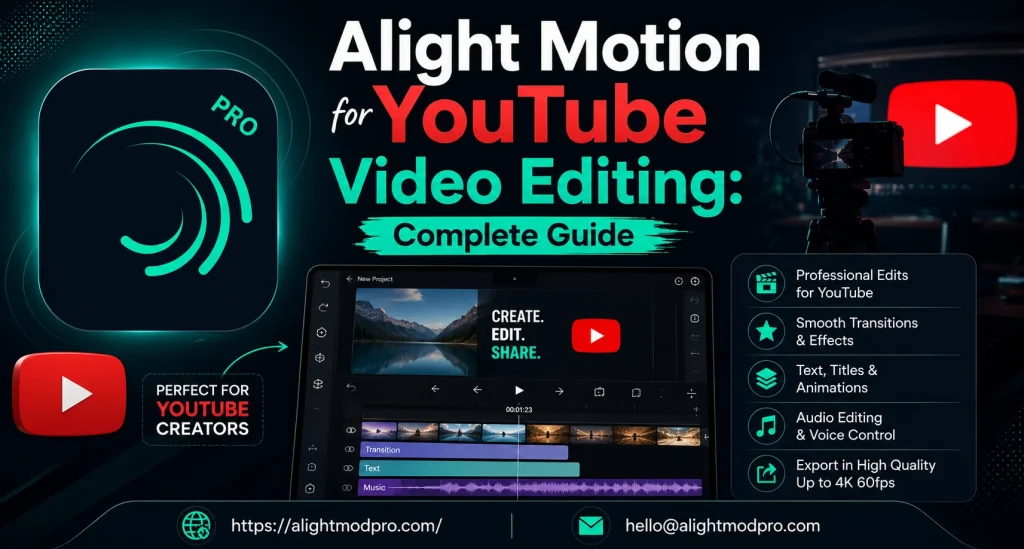
Creating professional YouTube videos requires powerful editing tools that can handle various content types. Alight Motion has emerged as a leading mobile motion graphics and video editing app for creators on the go. It brings professional-grade animation and editing tools directly to your smartphone, making YouTube content creation accessible anywhere. Whether you are creating gaming videos, educational content, vlogs, or cinematic intros, Alight Motion provides the features you need. This comprehensive guide will walk you through everything from project setup to final export.
What Makes Alight Motion Suitable for YouTube
Professional Features on Mobile
Alight Motion stands out as the first professional motion design app built specifically for smartphones, offering advanced animation and editing tools that rival desktop software. The app supports 4K video editing at 60 frames per second, ensuring your YouTube content looks sharp and professional. Higher frame rates enable smooth slow-motion effects popular in gaming and cinematic videos. Unlike basic editing apps, Alight Motion provides vector and bitmap support, allowing you to edit vector graphics directly on your phone.
Layer-Based Editing System
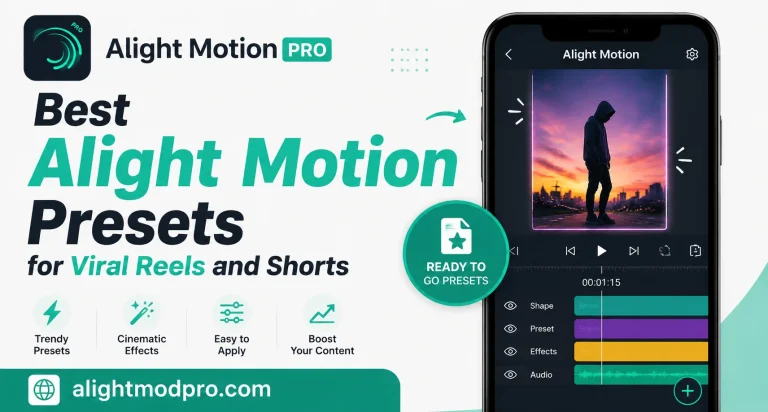
Everything in Alight Motion is built with layers that function like transparent sheets stacked on top of each other. Shape layers let you add rectangles, circles, and custom paths for graphic elements. Text layers are perfect for titles, captions, and typographic elements in your YouTube videos. Image and video layers allow you to import photos and clips from your camera roll. Group layers help you combine multiple layers for complex animations and effects. This layer system gives you precise control over every element in your video.
Extensive Effects Library
Alight Motion offers over 160 basic effect building blocks that can be combined to create sophisticated visual effects. You can add multiple layers of graphics, video, and audio to build complex compositions. The app provides solid color and gradient fill effects, borders, shadows, and strokes for enhanced visual appeal. Keyframe animation is available for all settings, giving you complete creative control. These features make Alight Motion a versatile tool for various YouTube content styles.
Setting Up Your YouTube Project
Choosing the Right Resolution
For YouTube videos, the standard horizontal resolution is 1920×1080 pixels in a 16:9 aspect ratio. This format ensures your content displays properly on all devices, from smartphones to desktop monitors. Alight Motion supports a wide range of video ratios, making it easy to choose the right format for your content. For YouTube Shorts, use 1080×1920 pixels in a 9:16 vertical aspect ratio. Always match your project settings to your target platform for the best results.
Frame Rate Selection
Frame rate significantly affects how smooth your video appears to viewers. For most YouTube content, 30 frames per second works well and balances quality with performance. If you want ultra-smooth motion, especially for gaming or action content, choose 60 frames per second. Alight Motion supports 4K editing at 60fps, giving you professional-level quality. Higher frame rates also enable stylish slow-motion effects that are popular on YouTube.
Duration Planning
Set your project duration based on your content type and YouTube requirements. YouTube allows videos up to 12 hours for verified accounts, but most creators keep content concise. Plan your timeline before starting to ensure efficient editing. You can always adjust duration later as your project develops. Consider your content’s purpose and audience attention span when setting duration.
Essential YouTube Editing Workflow
Importing Your Footage
Start by importing your base video or images into Alight Motion. The app supports multiple layers of graphics, video, and audio for complex compositions. You can import video clips from your device’s camera roll or use built-in media. For YouTube intros and outros, combine video with graphic elements. Organize your imported media in separate layers for easy management.
Keyframe Animation Fundamentals
Keyframes are the foundation of motion design in Alight Motion and are available for all settings. To animate any element, move the playhead to your starting position and set the property value. Add a keyframe, then move the playhead forward in time and change the property value. Add another keyframe, and Alight Motion automatically animates between these two points. This technique lets you create smooth zooms, slides, rotations, and complex motion graphics for your YouTube videos.
Mastering Easing Curves
The difference between amateur and professional animation often comes down to easing curves. Instead of moving at a constant speed, easing curves make motion feel natural and polished. Use Ease In for movements that start slow and end fast, like accelerating objects. Use Ease Out for movements that start fast and end slow, like objects coming to rest. Ease In-Out provides smooth acceleration and deceleration for professional-looking animations. Alight Motion’s graph editor gives you full control over easing curves.
Applying Effects and Color Grading
Apply visual effects like glow, blur, and color grading to enhance your YouTube video’s visual appeal. Alight Motion provides over 160 basic effect building blocks for sophisticated visual effects. For cinematic looks, use color grading tools to achieve teal-and-orange or cool, moody tones. Apply Gaussian Blur for soft, dreamy backgrounds behind text elements. Use effects judiciously to enhance content without overwhelming your viewers.
Creating YouTube Intros and Outros
Designing Professional Intros
YouTube intros set the tone for your entire video and establish your brand identity. Create animated text layers with your channel name using keyframes for smooth appearance. Add shape layers with your brand colors for visual consistency. Apply motion graphics that reflect your content’s style and energy. Include a call-to-action encouraging viewers to subscribe. Keep intros concise, ideally under 5-10 seconds, for maximum retention.
Building Effective Outros
Outros guide viewers to your other content and encourage engagement. Design end screens with video recommendations using shape and text layers. Add subscribe buttons with animated effects to capture attention. Include social media handles for cross-platform promotion. Use smooth transitions from your main content to the outro. Animate elements to appear sequentially for better viewer focus.
Advanced YouTube Editing Techniques
Camera and Movement Effects
Alight Motion supports cameras that pan, zoom, and support focus blur and fog. You can create smooth camera movements that make static footage more dynamic. This feature is particularly useful for gaming highlights and cinematic sequences. Null objects allow for advanced control over camera movement, similar to professional desktop software. Combine camera movements with keyframe animations for professional results.
Masking and Compositing
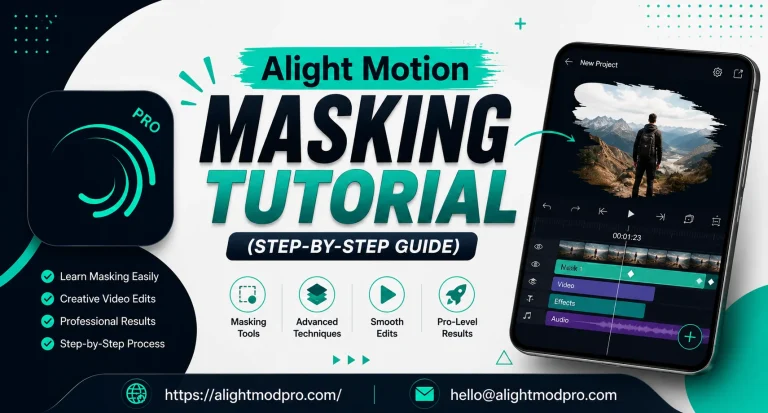
Group layers together and create masks for precise compositing. Masks allow you to show or hide specific parts of a layer for creative effects. This technique is essential for complex visual effects and transitions. You can combine multiple masks on a single layer for detailed control. Masking helps create professional-looking compositions without leaving the app.
Parent-Child Layer Relationships
Link parent and child layers and rig character joints for advanced animations. This feature creates hierarchical relationships between layers for complex motion. When you move the parent layer, all child layers move with it. This technique is essential for character animations and complex motion graphics. Parent-child relationships save time and maintain consistency across your animations.
Exporting for YouTube
Quality Settings
Before exporting, review your animation timing and effect intensity. Ensure keyframes are properly positioned throughout your timeline. Check that effects like blur and glow render correctly in preview. Export your video as MP4 with a high bitrate for the best quality. Alight Motion supports exporting MP4 video, GIF animation, PNG sequences, and stills.
Bitrate Considerations
Higher bitrate exports maintain better quality but result in larger file sizes. For YouTube uploads, aim for a balance between quality and file size. YouTube recommends specific bitrates based on resolution and frame rate. Test different settings to find what works best for your content. Consider your internet upload speed when choosing export settings.
Frequently Asked Questions
Conclusion
Alight Motion has established itself as a powerful tool for YouTube video editing, bringing professional-grade features to mobile devices. From project setup and keyframe animations to advanced camera effects and export settings, the app covers every aspect of the editing process. The layer-based system provides the control you need for complex compositions, while the extensive effects library offers endless creative possibilities. Whether you are creating gaming highlights, educational tutorials, or cinematic vlogs, Alight Motion gives you the tools to produce content that stands out on YouTube. The more you practice, the more polished your videos will become. Start creating your next YouTube video with Alight Motion today. Happy editing.