Alight Motion Export Settings for High Quality Videos
Export settings are the final and most critical step in your video editing workflow. Even the most beautifully crafted animation can look unprofessional if exported with incorrect settings. This comprehensive guide will walk you through the best export settings for high-quality videos in Alight Motion.
Understanding export settings ensures your content looks its best on every platform. From social media to professional presentations, the right settings make all the difference. Let’s explore everything you need to know about Alight Motion export settings for high-quality videos.
Understanding Export Basics
Exporting is the process of rendering your project into a final video file. Alight Motion offers various export options for different use cases. Choosing the right settings depends on your intended platform and quality requirements.
The export menu includes options for resolution, frame rate, bitrate, and file format. Each setting affects the final quality and file size of your video. Understanding these options is essential for professional results.
Choosing the Right Resolution
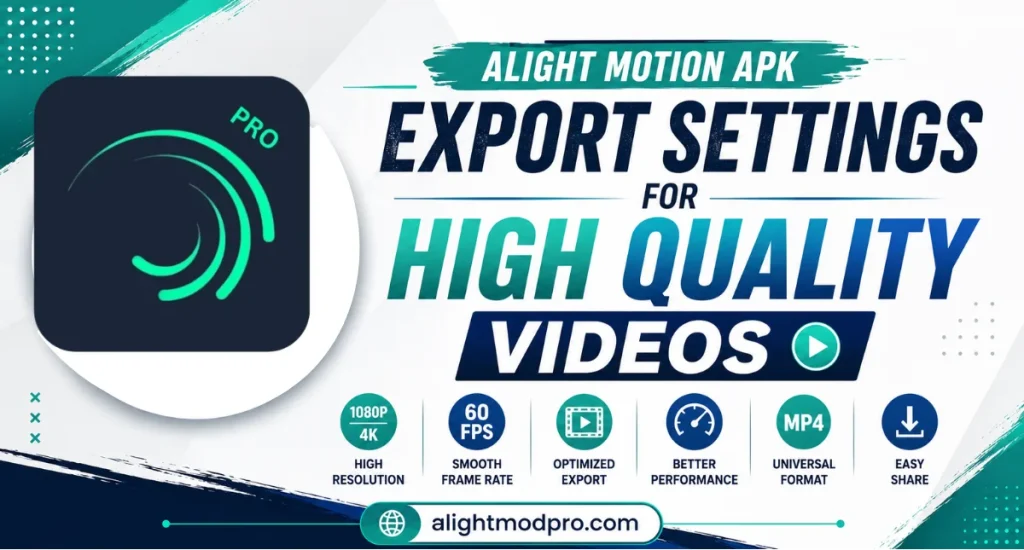
Resolution determines the clarity and sharpness of your exported video. Higher resolutions like 1080p and 4K provide sharper, more detailed images. Lower resolutions like 720p are suitable for smaller screens and faster uploads.
For most professional work, 1080p (1920×1080) is the standard choice. 4K (3840×2160) is recommended for high-end productions and future-proofing. Always consider your target platform when selecting resolution.
Frame Rate Selection Guide
Frame rate affects the smoothness of motion in your videos. 24fps is the cinematic standard for films and dramatic content. 30fps is standard for television and online video content.
60fps is recommended for smooth slow-motion and action content. Higher frame rates create smoother motion but result in larger file sizes. Choose your frame rate based on the nature of your content.
Understanding Bitrate
Bitrate determines the amount of data used per second of video. Higher bitrates produce better quality but larger file sizes. Lower bitrates save space but can introduce compression artifacts.
Variable bitrate adjusts the data rate based on scene complexity. Constant bitrate maintains the same data rate throughout the video. For professional quality, use variable bitrate with a high target value.
Recommended Bitrate Settings
For 1080p videos, use a bitrate of 8-12 Mbps for standard quality. For 1080p high quality, use 15-25 Mbps for professional results. For 4K videos, use 35-45 Mbps for excellent quality.
For social media platforms, bitrate recommendations vary by platform. YouTube recommends 8-12 Mbps for 1080p and 35-45 Mbps for 4K. Instagram and TikTok work well with 6-10 Mbps for 1080p.
File Format Options
Alight Motion supports multiple file formats for export. MP4 is the most widely compatible format for all platforms. MOV format offers higher quality but larger file sizes.
GIF format is used for animated images and simple animations. PNG sequences are used for professional workflows and compositing. Choose your format based on your intended use case.
Codec Selection
Codecs compress your video data for storage and playback. H.264 is the most commonly used codec for online videos. H.265 (HEVC) offers better compression but with less compatibility.
For maximum compatibility, choose H.264 as your primary codec. H.265 is recommended for 4K content to save space. Always test your exports on target devices before final delivery.
Exporting for YouTube
YouTube requires specific settings for optimal quality. Use 1080p or 4K resolution for the best viewing experience. Use 30fps or 60fps for smooth playback on the platform.
Use H.264 codec with variable bitrate for YouTube uploads. Set bitrate to 10-15 Mbps for 1080p and 40-50 Mbps for 4K. YouTube will recompress your video, so start with high-quality source files.
Exporting for Instagram
Instagram has specific requirements for video uploads. Square videos work best at 1080×1080 resolution. Vertical videos should be 1080×1920 for Stories and Reels.
Horizontal videos work well at 1080×608 for feed posts. Keep bitrate between 6-8 Mbps for Instagram uploads. Use 30fps for standard content and 60fps for action content.
Exporting for TikTok
TikTok videos work best in vertical format at 1080×1920. Use 30fps or 60fps depending on your content style. Higher frame rates perform better on the platform.
Bitrate between 6-10 Mbps works well for TikTok content. H.264 codec with AAC audio is recommended. Keep file sizes under 250MB for smooth uploading.
Exporting for Facebook
Facebook supports various video formats for different content types. Use 1080p or 720p resolution for standard feed videos. Square and vertical formats work well for mobile viewing.
Bitrate around 8 Mbps works well for Facebook uploads. Use H.264 codec for maximum compatibility. Consider platform-specific aspect ratios for better engagement.
Exporting for Professional Use
Professional projects require higher quality settings for client delivery. Use 4K resolution for maximum flexibility in post-production. Use high bitrate settings of 50+ Mbps for pristine quality.
Export with minimal compression for professional archives. Use MOV format with ProRes or DNxHD codecs when possible. Always keep a master export for future use.
Audio Export Settings
Audio quality is just as important as video quality. Use AAC audio codec for maximum compatibility. Set bitrate to 192-320 kbps for professional audio quality.
For music videos, consider higher bitrate audio settings. For social media, 128-192 kbps is usually sufficient. Always check audio levels before final export.
Watermark Removal Options
The free version of Alight Motion includes a watermark on exports. Upgrade to the premium version to remove the watermark. Premium also unlocks higher resolution exports without restrictions.
Consider watermark placement if using the free version. The watermark appears on the bottom right of your video. Professional work typically requires watermark removal.
Export Presets
Alight Motion allows you to save custom export presets. Create presets for different platforms and use cases. This saves time and ensures consistency across projects.
Save presets for YouTube, Instagram, TikTok, and professional delivery. Name presets clearly for easy identification. Presets streamline your export workflow significantly.
Testing Your Exports
Always test your exports on target devices before final delivery. Check for visual artifacts, audio sync, and overall quality. Playback on different screens reveals issues you might miss.
Test on both mobile devices and desktop computers. Check how your video appears on different social media platforms. Testing ensures your content looks professional everywhere.
File Size Considerations
File size affects upload times and storage requirements. Larger files take longer to upload and share. Smaller files compress faster but may lose quality.
Balance quality and file size based on your needs. Social media platforms have file size limits to consider. Always check platform limitations before final export.
Storage and Backup
Always keep a master copy of your exported videos. Store your exports in organized folders for easy access. Back up important videos to cloud storage services.
Consider using external drives for large video archives. Keep multiple backups of your important projects. Professional editors never rely on single storage locations.
Common Export Mistakes
Using too low bitrate is the most common export mistake. This results in pixelation and compression artifacts. Always use recommended bitrate settings for your resolution.
Forgetting to check audio levels is another common error. Exporting with incorrect aspect ratios ruins your composition. Always review all settings before final export.
Fixing Export Issues
If your export looks pixelated, increase your bitrate setting. If audio is out of sync, check your audio timeline alignment. If video plays poorly, try a different codec or format.
If file size is too large, reduce bitrate or resolution. If upload fails, check platform file size limits. Most export issues have simple solutions with proper settings.
Advanced Export Techniques
Use PNG sequences for professional compositing workflows. Export alpha channels for transparency effects in other software. Use proxies for efficient editing of high-resolution projects.
Consider color space settings for professional color grading. Use different export settings for different delivery requirements. Advanced techniques give you more control over final quality.
Exporting for Archival Purposes
Archival exports require the highest quality settings available. Use 4K resolution with minimal compression for long-term storage. Keep multiple copies in different locations for safety.
Use professional codecs like ProRes or DNxHD for archiving. Include metadata and project information with your archives. Proper archiving protects your work for future use.
Platform-Specific Optimization
Each platform has unique requirements for optimal video playback. Research platform guidelines before exporting your content. Customize your settings for each platform you use.
Social media platforms often have specific bitrate recommendations. Video platforms like Vimeo support higher quality options. Platform-specific optimization ensures your content looks its best.
Checking Export Quality
Play your exported video at full screen to check quality. Look for compression artifacts in dark areas and fast motion. Check color accuracy and overall visual fidelity.
Compare your export to the preview in Alight Motion. The export should match the preview quality closely. Quality checking is essential for professional delivery.
Frequently Asked Questions
Conclusion
Export settings are the final step in creating professional video content. The right settings ensure your work looks amazing on every platform. Take time to understand each export option for the best results.
Choose resolution, frame rate, and bitrate based on your target platform. Always test your exports before final delivery to clients. With proper export settings, your Alight Motion projects will shine.